Capabilities
Key features
Implementation
Setup guide
Connect your HubSpot account
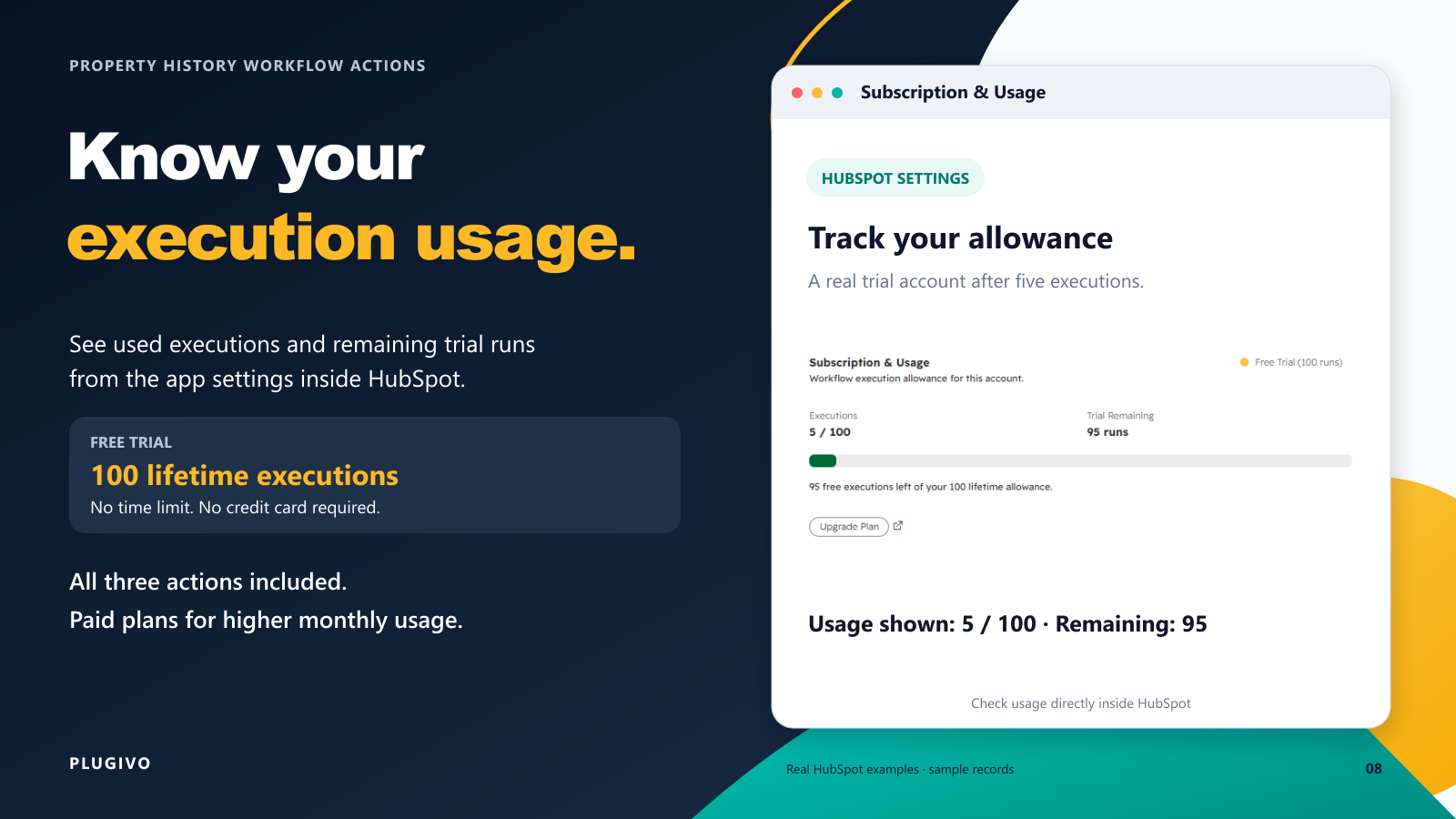
Install Property History Workflow Actions and approve read access to Contacts, Companies, Deals and Tickets. Open the app settings in HubSpot to check the connection and execution allowance. The trial includes 100 lifetime executions per account, without a time limit or credit card.
Add an action and choose a property
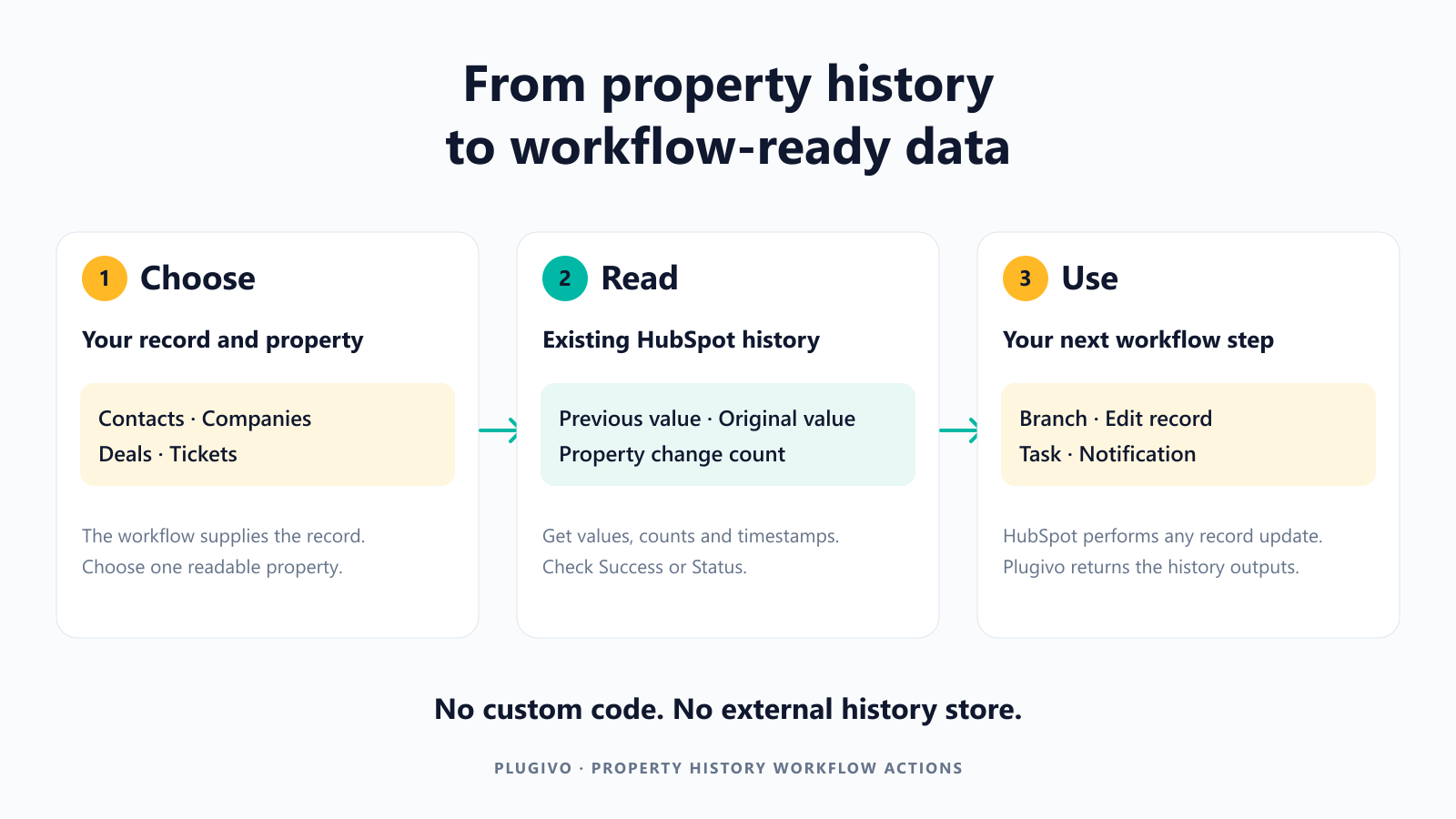
Open a Contact, Company, Deal or Ticket workflow. Choose Get Previous Property Value, Get Original Property Value, or Count Property Changes, then search the property selector for a readable property. The workflow supplies the enrolled record; no record ID or tracking mapping is required.
Example: get the previous Job Title
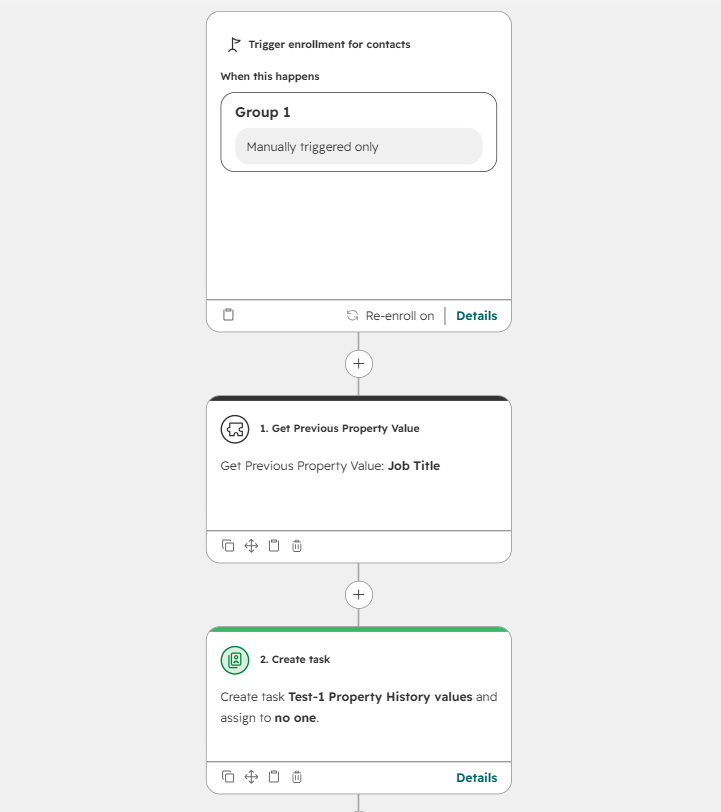
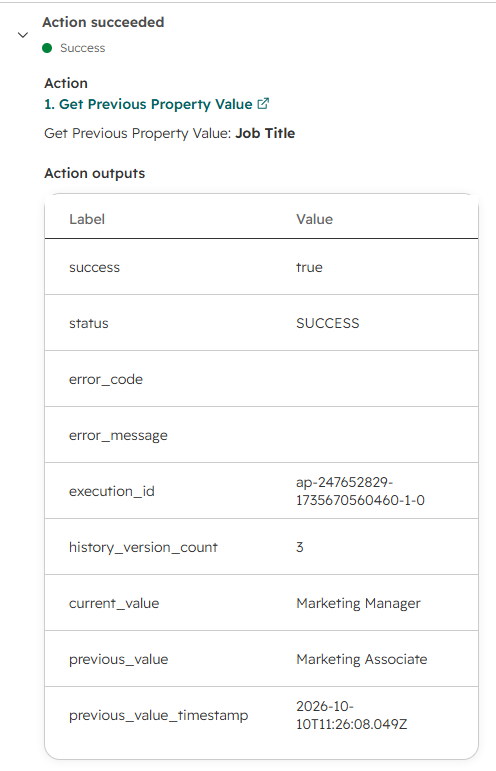
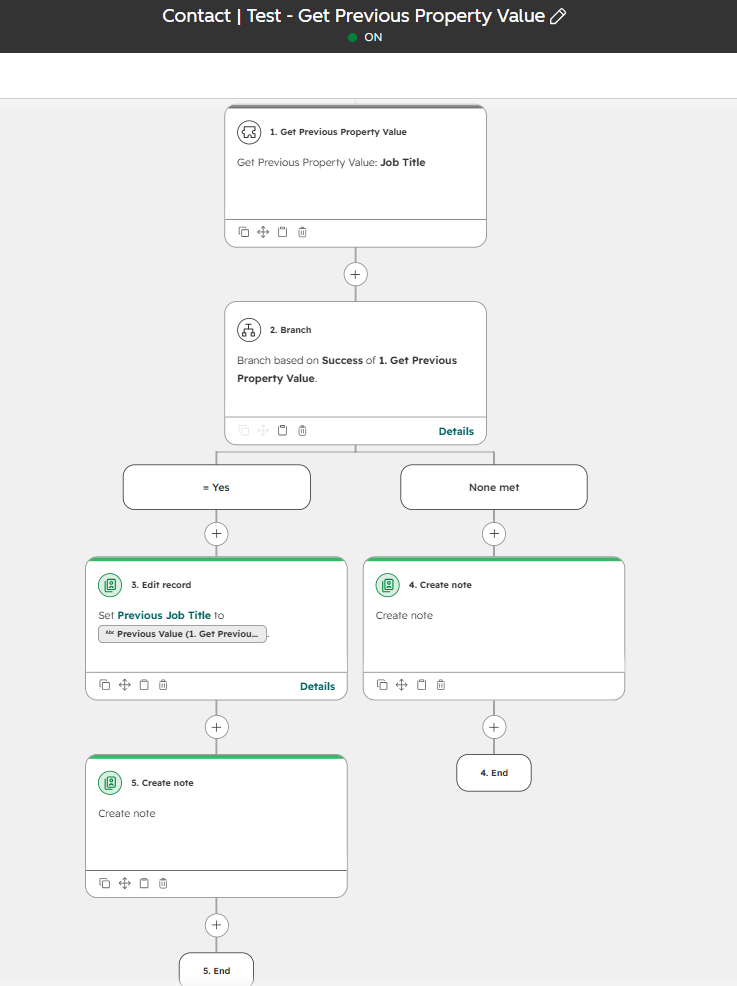
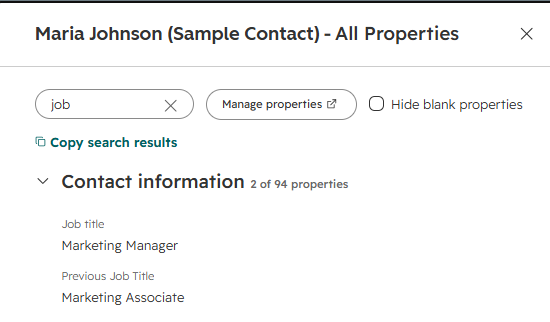
In a Contact workflow, add Get Previous Property Value and choose Job Title. Enroll a test contact with known history. The example returns Marketing Associate as the previous value while the current value is Marketing Manager, with a UTC timestamp for the previous version.
Example: get the original Deal Amount
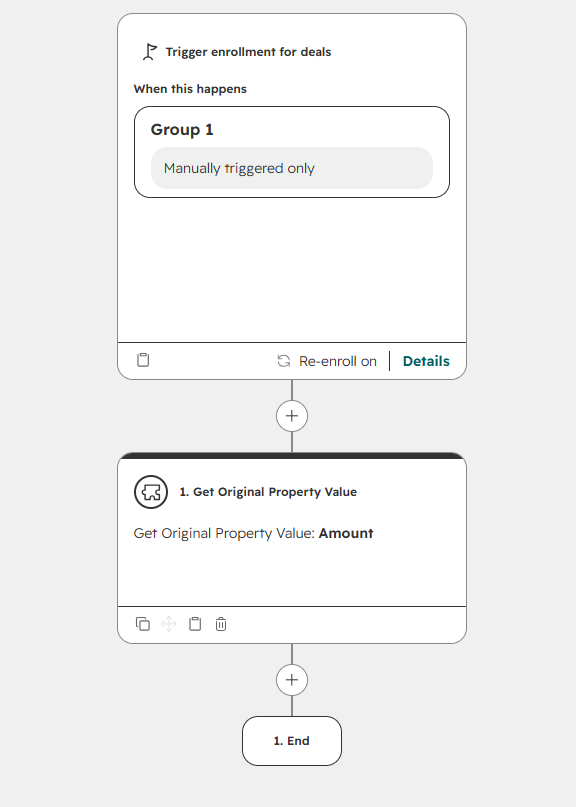
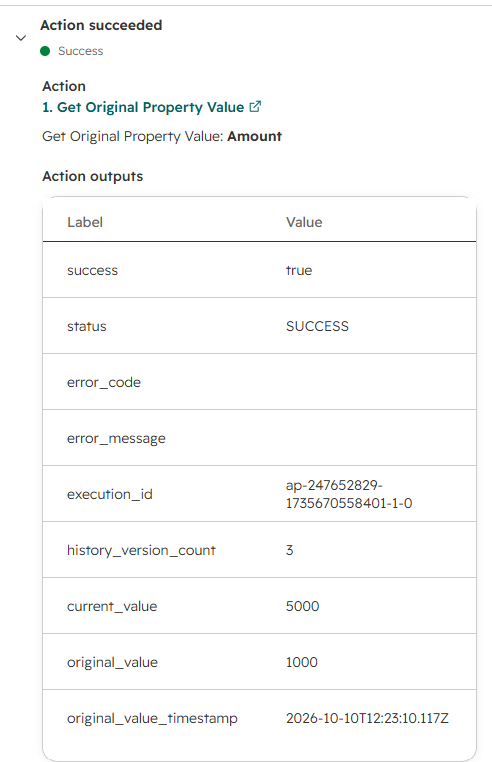
In a Deal workflow, add Get Original Property Value and choose Amount. This example returns an original value of 1000 and a current value of 5000. Original means the oldest recorded value available from HubSpot; it is not guaranteed to be the value at record creation.
Example: count Ticket status changes
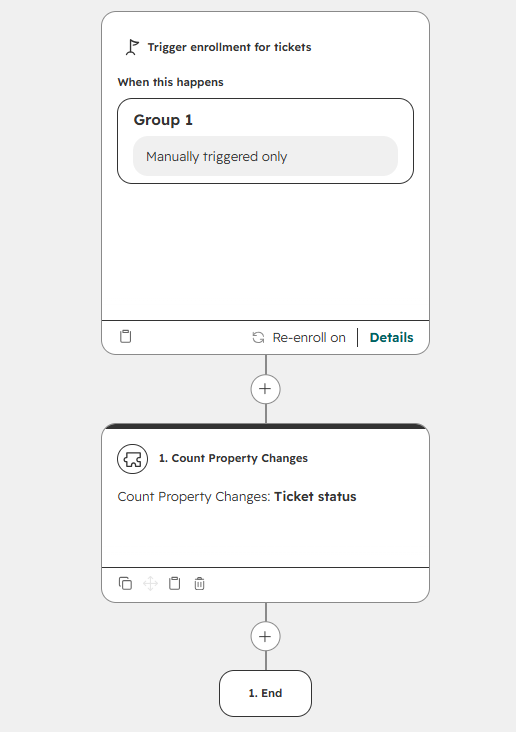
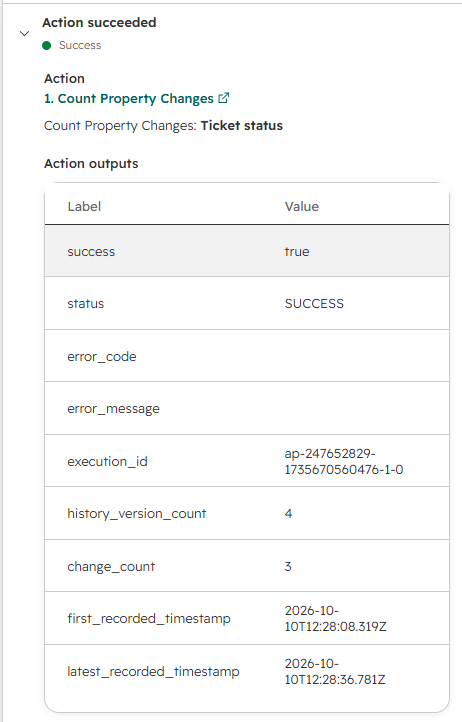
In a Ticket workflow, add Count Property Changes and choose Ticket status. This example has four recorded versions and three changes. Change count counts unequal adjacent values across the available history, while History version count counts the recorded versions themselves.
Check Success before saving a value
Add a branch on Success or Status before using a history value. In the Yes branch, use HubSpot's Edit record action to save the Previous Value output to a separate Previous Job Title property. The history action only reads data; HubSpot performs the update. NO_DATA means no history or no previous version is available. ERROR includes an error code and execution ID.
Branch on Change Count to notify your team
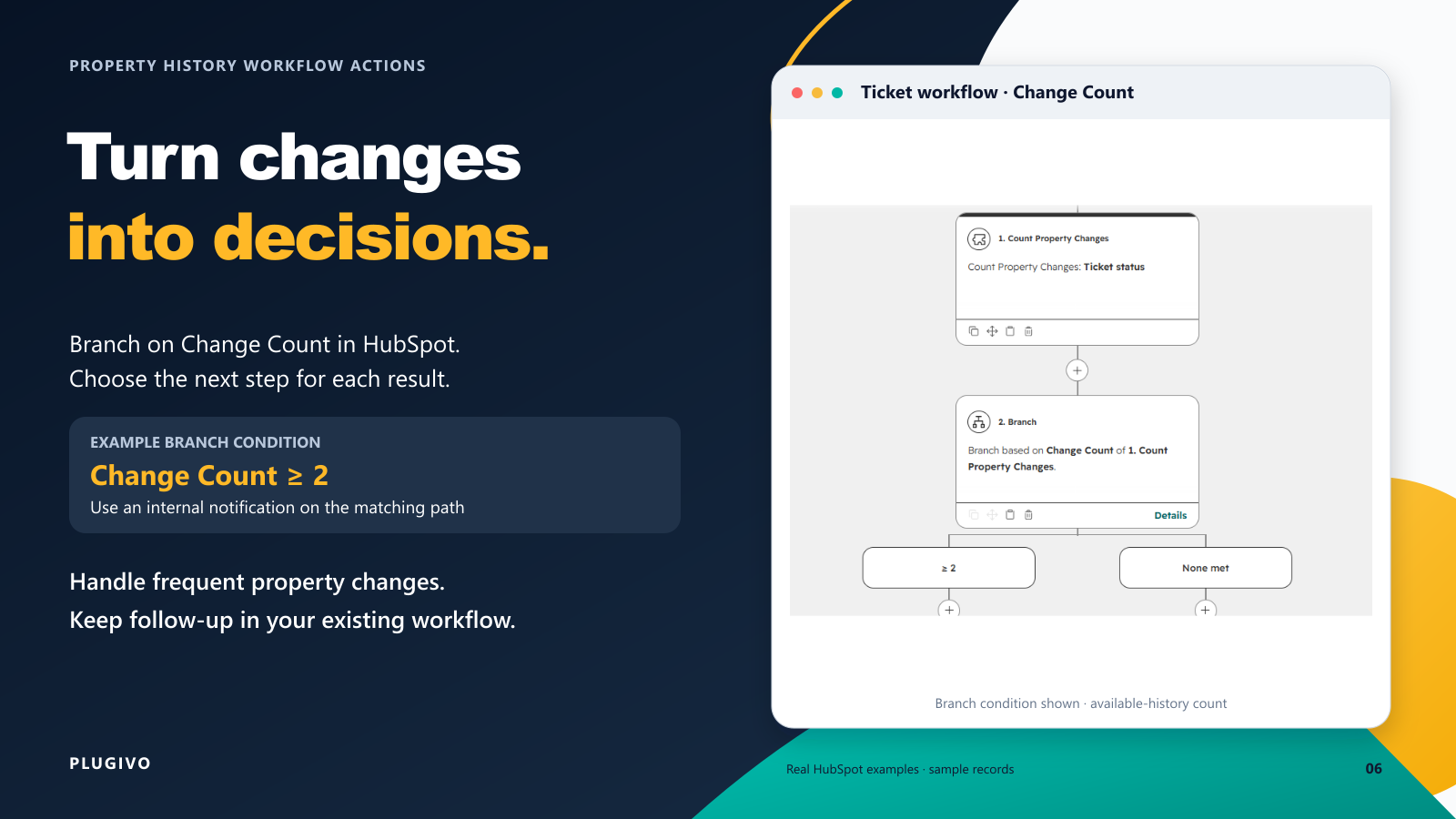
After checking the result, branch on Change Count. The example routes tickets with a count of at least 2 to an internal notification. This count covers all available history, rather than only changes during a time window or since the last enrollment.
Test before broad enrollment
Compare each output with the history of a test record in HubSpot. Check the no-data path as well as successful values, including blanks and repeated versions. Use a separate destination property when saving a historical value so the current source property stays useful. Return to app settings to check usage before enrolling more records.
Reference
Frequently asked questions
Is the original value the record creation value?
Which value formats are returned?
How are blanks and repeated versions handled?
What consumes the allowance?
Does Plugivo store CRM history?
What happens at the limit?
Ready to put the app to work?
Install Property History Workflow Actions and add the action to your HubSpot workflow. No credit card required for the trial.
Install Property History Workflow Actions